Wednesday, 14 March 2012

7 Microsoft Word Shortcuts You Probably Don’t Know

Microsoft Word : Love it or hate it, practically everyone uses it. I stumbled across some super helpful shortcuts hidden tricks and timesavers that make Microsoft Word easier and faster.Different versions of Word may have different commands, so some of these may not work in your version.

1. Double Click And Drag
If you're like most people, when you want to move a section of text from one place to another, you use Control-C to cut and Control-V to paste. That's fine. It works. But there's a faster way: Double click or highlight what you want to move, then simply drag what you've highlighted to where you want it to land.

2. Double Underline
You know you can affect text by hitting Control-B to make it bold or Control-U to underline. But if one line of underlining just isn't emphatic enough, Control-Shift-D will double underline. (On a Mac, use Command-Shift-D.) If that doesn't make your point, you may have to go to ALL CAPS, and I've got a shortcut for that too…
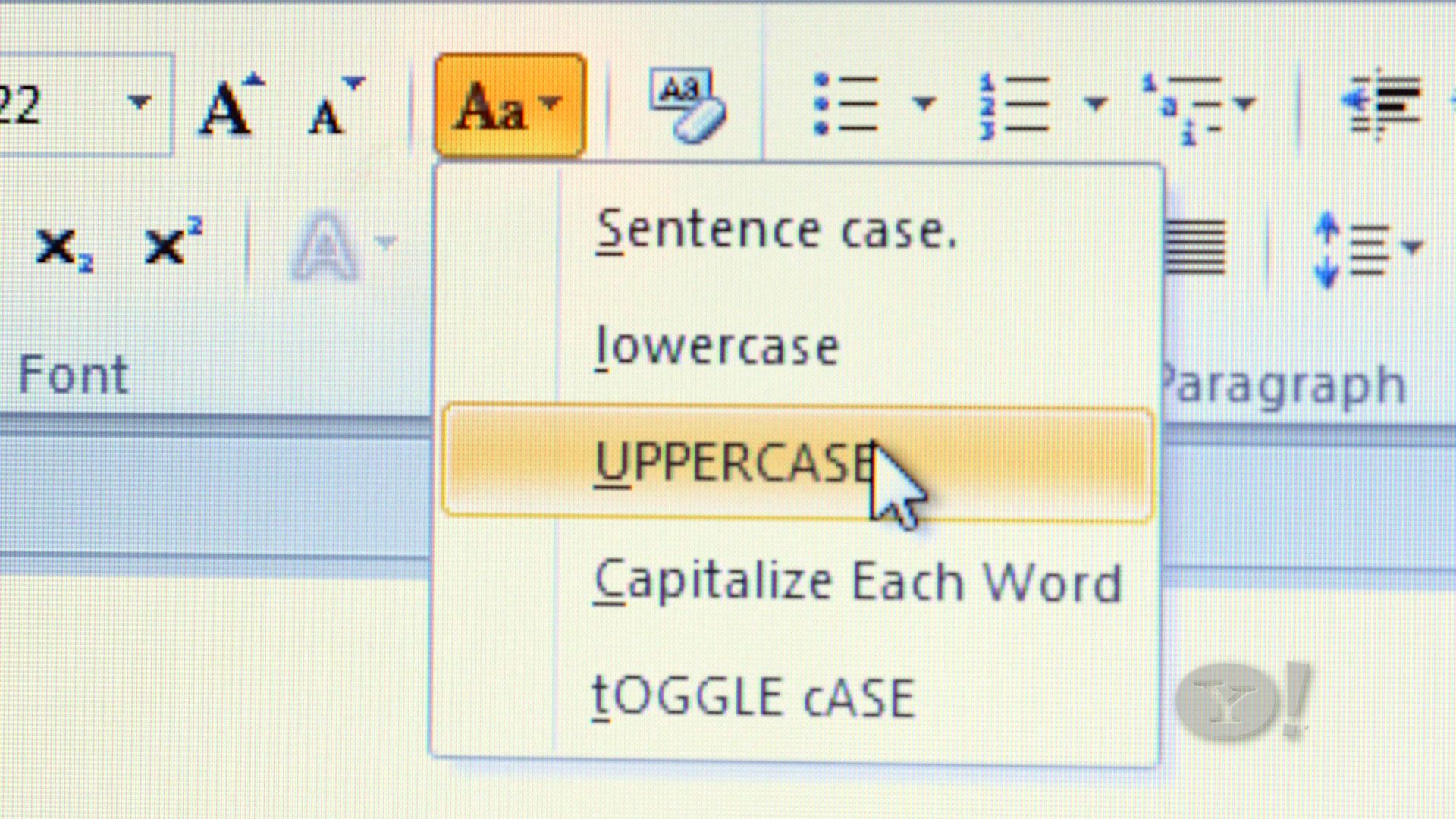
3. Change Case
Instead of retyping everything to change from lower case to Title Case or to UPPERCASE, just highlight the text you want to change, click the case button, and then choose which case you want.


4. Add the Date
How many times a day do you type the date? If you do it even once, that's too much. Next time, just hit Alt-Shift-D (or Control-Shift -D on a Mac) to add the date automatically.
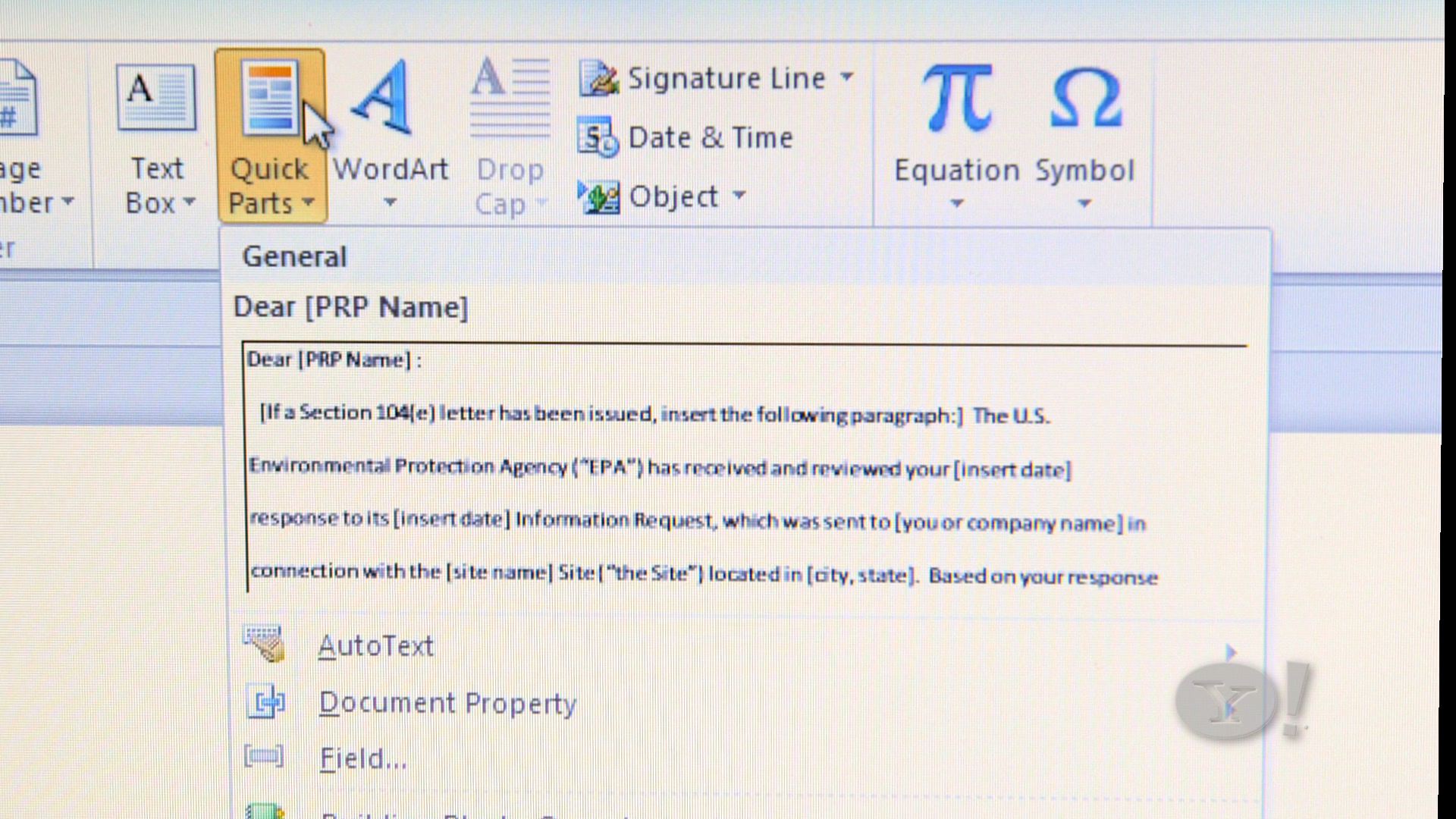
5. Quick Parts
This next tip builds on what the Autotext function did in older versions of Word: If you have a certain paragraph of text you regularly need to add to a document like a boilerplate disclaimer, or maybe directions to your office turn it into a Quick Part. Here's how:


  1. Highlight the text you regularly use
  2. Click the insert tab
  3. Hit Quick Parts, and choose "Save Selection To The Quick Part Gallery"
Now any time you want to insert that chunk of text into a document, either a new one or and old one you're editing, just hit that Quick Parts button. Just one more click will select which saved Quick Part to insert. This trick will even work as a shortcut for adding a logo or letterhead.

6. Conform Fonts
This one used to drive me crazy: I'd copy and paste some bit of text from another document or from the Web, and then I'd have to click all over the place to get the font size and style to match the surrounding text of my existing document. No longer. Here's all you need to do: Highlight the non-conforming text, then hit Control-Spacebar. Done.

7. Customize Quick Access Toolbar
There is one way to get your most commonly used commands in the same place- that's to customize the Quick Access Toolbar.  It's like the center drawer in your desk that has all the stuff you use most in one easy-to-access place. No organization, just (as the name implies) quick access. So take the things you like most and add them to the Quick Access toolbar. Click the little down arrow tab to get to the Customize Quick Access Toolbar drop down menu:
Hit "more commands" and add whatever you use most. You can also position this toolbar below the ribbon if you prefer it to be closer to your document text.

Tuesday, 6 March 2012

Outlook 2007 RPC over HTTP Exchange Access

This document details how to set up your Outlook 2007 account to access the Exchange Server from off-campus using RPC/HTTP. Using this method will allow you to access Exchange without using the VPN.

1. Open Control Panel

Click your Start Menu, then choose Control Panel.  You may have to go to Settings then Control Panel depending upon your Operating System.

2. Bring up the Account Settings

Once you are at the Control Panel, double click your Mail icon (If you don't see this, try switching to Classic View in the sidebar to the left).


The Mail Setup window should appear, in which you want to click on E-mail Accounts...


Once the Accout Settings window appears, you should click New...


Check Manually configure server settings or additional server types and choose Next.


Microsoft Exchange should be checked.  Click Next again.


Next, fill in your account information. Your exchange server should be exmail.domain.com,(Ask from your system administrator) and you should CHECK where it says Use Cached Exchange Mode.  Next, type in your username in the User Name field.  Finally, click More Settings.


Once the "Microsoft Exchange" window appears, go to the Connection tab and check the box that says Connect to Microsoft Exchange using HTTP.  Next, click Exchange Proxy Settings...


After the "Microsoft Exchange Proxy Settings" window appears, enter exweb.domain.com, (Ask from your system administrator) into the first field.  You then want to make sure that Connect using SSL only is CHECKED, and that Only connect to proxy servers that have this principal name in their certificate is UNCHECKED.  Lastly, CHECK both the On fast networks and On slow networks checkboxes and then his OK.  Hit Apply and OK on the "Microsoft Exchange" window, then click Next when you get to the "Add New E-mail Account" window.


Once you hit Next, an box will appear saying "Connecting to exmail.domain.com " Type in domain\username into the username field, then enter your password where requested.  Hit OK when you're done.


Open up Outlook, and you should be prompted for your username and password again.  Enter the same information as before, and check the box that says Remember my password if you don't want this to pop up every time you open Outlook.  Once your information is entered, click OK.  The login box should disappear, and you will see an indicator in your system tray similar to the one below.  Your e-mails should then start appearing.  It may take several minutes before all your mail shows up, depending on how many e-mails you have.


Manually Check for Windows 7 Updates

This article illustrates how to manually check for system updates in Windows 7.

Open Windows Update from the Control Panel
Click on the start button in the lower-left corner of the screen, then click on Control Panel.
Next, click on System and Security, then Windows Update and Check for Updates.


Check For Updates
Windows will check for updates, then display its findings.


Select Updates
If there are updates pending for the system, Windows will show a prompt to install all available high-priority updates. The prompt will look something like this:

   
Install Updates
Save any open documents, and close all other applications.  Click on Install Updates to install any pendingWindows updates. This can take some time depending on the capabilities of the system, and the speed of the Internet connection.

Restart Computer
When prompted to restart the machine, click Restart Now

Sunday, 4 March 2012

Check If Someone Is Using Your Wi-Fi

It may be that you're experiencing a slower than normal Internet connection or you simply don't want anyone getting a free ride while you pay the bill. Of course, there are also security implications if this person can somehow access files on your network, and even legal implications if he uses your connection for piracy or other illicit activities. Whatever the case it's better
to stay on the safe side. Many of you may have already taken some basic precautions when setting up your wireless network and know your way around troubleshooting these issues. This brief guide is aimed mostly at novice users in need a hand to find out if, indeed, their Wi-Fi is being stolen.

Check the devices associated with your router
The first thing you need to do is login to your router's administrative console by typing its IP address directly into the browser address bar -- typically 192.168.0.1 or 192.168.1.1 or simply go to the command prompt (Start > Run/Search for cmd) and enter "ipconfig". The address you need should be next to Default Gateway under your Local Area Connection.
Next, point your browser to that IP address and enter your login details. Once inside your router's administrative console look for a section related to connected devices or wireless status.


This should provide a table with the IP, MAC address and other details of every device currently
connected to the router. Check that list against your gear to find any intruders. You can find out
MAC/IP address of your computers by going to the Command Prompt again and entering 'ipconfig /all'.
The MAC address will be shown as the physical address. I'll let you figure it out for mobile devices
like smartphones and media players since I can't possibly list all options.

Taking action
The best and simplest solution is to set up a strong password using WPA2 or WPA -- WEP is very easy to crack so avoid that if possible. There are some other methods you can use to beef up security, like switching off the SSID broadcast (which prevents it from advertising the name of your network to nearby Wi-Fi devices) or setup a filter for allowed or blocked devices by MAC address. It won't stop the most determined intruder but it will slow him down.
Needless to say, we're not suggesting you take matters into your own hands, but it might come in handy if someone is getting you in trouble with authorities using your network for illegal purposes -- or simply to have a cool story to tell.

Friday, 2 March 2012

Add RSS Feeds to the Windows 7 Sidebar

What is RSS?

RSS (Rich Site Summary) is a format for delivering regularly changing web content. Many news-related sites, weblogs and other online publishers syndicate their content as an RSS Feed to whoever wants it.

Why RSS?  Benefits and Reasons for using RSS....

RSS solves a problem for people who regularly use the web. It allows you to easily stay informed by retrieving the latest content from the sites you are interested in. You save time by not needing to visit each site individually. You ensure your privacy, by not needing to join each site's email newsletter. The number of sites offering RSS feeds is growing rapidly and includes big names like Yahoo News.

If you subscribe to a lot of RSS feeds and want quick access to them on your Windows 7 desktop, you can add a Feed Reader gadget to the desktop to do this.

First let’s bring the gadget to the visible desktop.  To do this Right-Click any open space on the Desktop.  Then Click Gadgets.
windows 7 feed reader gadgets context menu access
The Gadgets window will appear, Right-Click Feed Headlines and then Click Add.
how to add a feed reader gadget in windows 7

Subscribe to an RSS Feed

The first step is to subscribe to an RSS feed in Internet Explorer. The RSS button in Internet Explorer is grey unless you are on a site for which an RSS feed is available. Then, the button turns orange.
Open Internet Explorer and go to the site to which you want to subscribe. Click the orange RSS button on the toolbar.
RSS button in IE
The RSS feed displays in the browser window. Click the Subscribe to this feed link in the yellow box.
Subscribe to this feed link
The Subscribe to this Feed dialog box. You can change the name of the feed and also specify which folder in which to save the feed. This allows you to organize your feeds, if you have a lot of them. Click the Subscribe button.
Subscribe to this Feed dialog box
A message displays saying you have been successfully subscribed to the feed. A link is provided allowing you access to your list of feeds. Click the View my feeds link.
View my feeds link
A sidebar displays with the Feeds tab active, displaying a list of the feeds to which you are subscribed.
Viewing feeds in IE
 Done....

 There are many major weblog software packages contain RSS generators which are fairly easy to use, too.