Monday, 27 February 2012

Blocking Windows 7 Account Automatically

There are many ways for a crackers to break your account, such as a brute force method. In this method , a cracker tries to combine characters, letter and numbers to break your user account, or guessing various words in dictionary, or breaking your account directly through the weakness of system.
In Windows 7, There is a way to reduce an account breaking by locking the account. A locking is done automatically after user gives incorrect password for several times.
These are the steps to activate this feature:
1. Start_then type "secpol.msc" in Searching box
2. Local Security Policy Editor will be opened, go to Account Policies and choose Account Lockout Policy
3. Right click Account lockout thereshold and choose properties
4. Add amount of "invalid logon" from default 0 to higher number. If you enter "3" then the user account will be blocked after the user give a wrong password 3 times
5. OK to save change

Saturday, 25 February 2012

32-Bit and 64-Bit Versions of Windows 7

Windows 7 Home Premium is available in both a 32-bit model and a 64-bit model. Although both types of Windows 7 look and act the same on the surface, the way they work is quite different. How do you choose between the 32-bit and 64-bit versions? It really boils down to your needs and capabilities.
The 32-bit flavor of Windows has a limit on the amount of memory that Windows can use. It really can only see 3.4 or 3.5 gigabytes (GB) of memory. Even if you put 8GB of memory into your computer, the 32-bit version of Windows can only use about 3.5GB. The rest just sits there, wasted.
On the other hand, the 64-bit flavor of Windows 7 can use much more than 8GB of RAM. Whether you need that much additional memory is debatable, but some power users will definitely want the extra memory.
If you're thinking about going the 64-bit route, you first need to find out whether your computer can even handle it. On a Vista computer, you can find that information by following these steps.
  1. Click Start→Control Panel→System and Maintenance→Performance Information and Tools.
  2. Click View.
  3. Under System type, see what version of Windows you're currently running.
  4. Under 64-bit capable, see whether you can run a 64-bit version of Windows.
The 64-bit capable listing won’t appear if you’re already running a 64-bit version of Windows.
If you’re starting out with completely new hardware and you plan to run your PC for a long, long time, 64-bit Windows 7 makes a lot of sense. In the long run, you’ll be better prepared for the future.
 

Friday, 24 February 2012

How to Use Flip 3D in Windows 7

To use the Flip 3D feature, hold down the Windows logo key on the keyboard and then press the Tab key. All the open windows will cascade across your desktop in 3-D. Flip through the cascading thumbnails by continuing to the press the Tab key. When the thumbnail of the window you want appears at the front of the stack, release the Windows logo key. Your windows will all lay back down with the window you want on top. If your mouse has a center wheel, you can then flip through the 3-D stack by turning the wheel. (Turn the wheel forward to flip backward through the stack and backward to flip forward.)

Wednesday, 22 February 2012

Create PST On Outlook 2003 or 2007

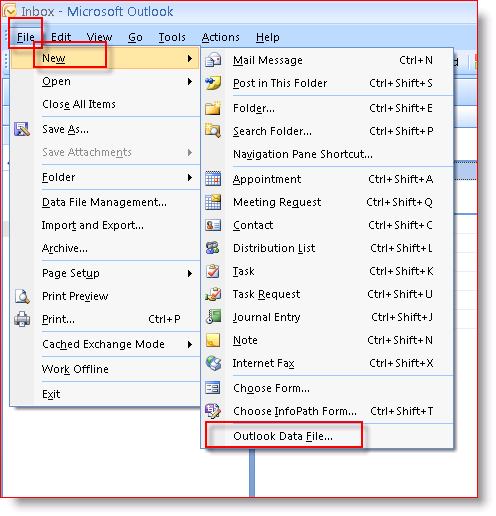
1:   From Outlook, Click File, New, Outlook Data File…
How-To Create .PST files using Outook 2007 or Outlook 2003 :: groovyPost.com
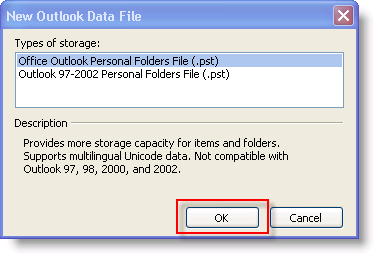
 2:   Keep Default Setting – Office Outlook Personal Folders File (.pst) and Click OK
Create New Outlook Data File :: groovyPost.com
 Note: In Step 3, you need to decide where to SAVE the new .PST file.  By default, new PST files are saved:
Windows Vista & Windows Server 2008 : C:\Users\MrGroove\AppData\Local\Microsoft\Outlook\
Windows XP: C:\Documents and Settings\MrGroove\Application Data\Microsoft\Outlook\

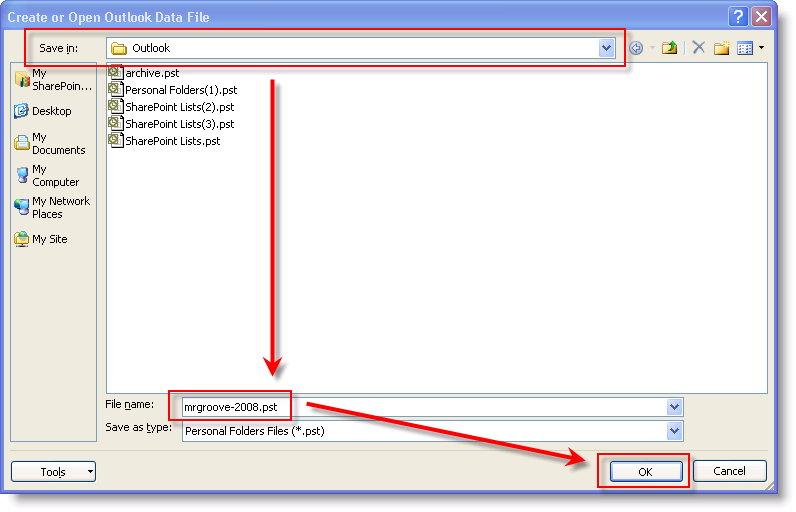
 3:  Verify location to save PST file, Type File Name for PST file (I organize by Mailbox Name and Year), Click OK
Name your .PST file, choose a path and click OK :: groovyPost.com

4:   In the Name Field, Type Display Name.  This is the name which will be displayed in Outlook.  Click OK
Name your .PST file, select a password and click OK image :: groovyPost.com
Note: Optionally, you can also enter a Password here to improve Security.  Prior to Outlook 2007, adding a Password to a .PST file was worthless due to a flaw which allowed the Security to be defeated instantly using a number of Security Password Cracking Products no matter how long or complex the password was.  I’ve not tested to see if Microsoft fixed this Issue in Outlook 2007 but once I do, I’ll update the article.


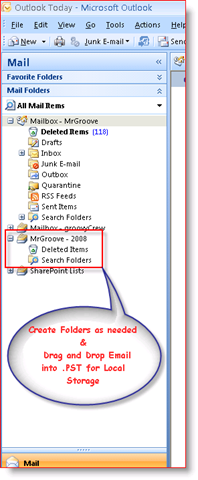
 5:   Once Step 4 is completed, new .PST or Local Personal Data Folder will display in your Navigation Pane as shown in the Screen Snip Below.  Expand the Personal Data File you created and Right Click on Personal Data File (MrGroove – 2008 in my example) to begin Creating additional folders, Calendars etc…  Drag and Drop also works OR, you can Cut and Paste Emails or Folders of Emails from your Server Mailbox to your new .PST Personal Data Folder.  It’s pretty simple.
Outlook 2007 inbox displaying .PST Personal Data File in Navigation Pane :: groovyPost.com

Tuesday, 21 February 2012

How to archive your email on Outlook 2007


Use Auto Archive to automatically move important but infrequently used items to an archive file. This is to manage .PST file size or to prevent “mailbox full” message disturb you every day. The following is the default location and name for the archive file:
C:\Documents and Settings\[your user name]\Local Settings\Application Data\Microsoft\Outlook\Archive.pst
You may want to backup the archive file the same way as you backup the PST file. Recovering a PST file alone won't recover your archived file. Consider backing up both files at the same time.
You can turn off Auto Archive to prevent it from running on all folders. Return to Auto Archives options and uncheck the box next to "Run AutoArchive every n days."

Monday, 20 February 2012

Speed Up Computer


Speed Up Computer
The following tasks are going to be the highest impact tasks that you can try to speed up a computer. Hopefully your PC will be brought back up to a normal speed after finishing these steps. Also, there are many more computer tips in our guides and tips section that can help to further speed up your PC.

 1) Clean Your Registry (Recommended - CCleaner)
Cleaning Your Registry is a top way to speed up your computer. You've probably noticed that your computer gets slower and slower as time passes. More often than not, this is caused by Registry problems, accumulated as a result of installing and uninstalling programs. This ultimately has a negative effect on the operation of Windows.

2) Defragment To Boost Hard Drive Speed
This will help your hard drive run much more efficiently. If you haven't defragmented in awhile, we would recommend running the windows defrag multiple times. To Defragment your hard drive, open up "My Computer", Right Click on C:, Click properties, Click the "Tools" Tab, Click "Defragment Now", Click Defragment, click OK.

 3) Scan For and Remove Viruses
One of the most common reasons for a slow computer is a virus. You will want to scan for and remove any viruses that may be infecting your computer. This may be a difficult task if you already have a virus. However, many virus's can be removed by your virus protection software.

 4) Remove Spyware
Another common reason for a slow computer is spyware or malware. You will want to run a spyware check and remove any spyware that the spyware program finds.

5) Free Up Disk Space
If your computer is low on disk space, freeing up disk space can help speed up a PC. Freeing up disk space will also help out with step 3.

 6) Update PC Drivers
Old or ancient drivers may cause a range of problems, from diminished hardware functionality to conflicts and system crashes. As Windows requires specialized drivers to run practically every piece of hardware on your PC, keeping track of what needs to be updated, downloading and then installing the right drivers can be tricky and technically troublesome.

7) Disable Windows Indexing Service
The Windows Indexing Service is always running in the backround on your PC and can slow your PC down a bit. Disabling this can give a small speed boost. To do disable windows indexing, open up "My Computer", Right Click on C:, Click properties, Uncheck "Allow Indexing Service to index this disk for fast file searching", click ok.

8) Optimizing Windows Startup Programs
When Windows starts up it automatically loads a number of programs, many of which you may not need all the time and can be started when needed. One thing that will help computer speed will be cutting down on the number of programs that startup automatically.

Here are simple steps to Disable Programs at Startup in XP.
1. Click on Start->Run
2. Type "msconfig" and click OK. (This will bring up System Configuration Utility.)
3. In the System Configuration Utility, Click the tab called Startup.
4. Now you can uncheck any programs that you do not want running at Windows XP startup.
5. Once you are done unchecking programs, Click Okay. You will be prompted to restart your computer at this point.

Here are simple steps to Disable Programs at Startup in Windows Vista and 7 with the System Configuration Utility.
1. Open up msconfig (use the Start Menu's Instant Search feature: just press the Windows key and type 'System' and the hit return).
2. Click the Startup tab.
3. Now you can uncheck any programs that you do not want running at Windows 7 or Vista startup and hit OK.

9) Disable Unnecessary Services
Services are programs that are continuously running in the background of Windows and are doing different tasks that Windows needs done. There are a lot of these services and they can use a lot of resources. The good news is that a lot of these services are expendable and can be turned off without any problems. This is an ADVANCED TASK. Managing Services with Services.msc
1. Go to Start -> Programs -> Administrative Tools -> Services. You can also go to START -> Run -> and type services.msc.
2. Left-click on a service.
3. Read the description of the service just to make sure you don't think you will need the service.
4. If you decide you want to disable the service, Right-click -> Properties -> Change the "Startup Type" to "Manual" and then stop the service. The next time you reboot Windows the service will not start.

 10) Clean your Computer
The inside of a computer tower can get dusty over time. This dust will cause the fans will cause the cooling equipment to not work as well as when you first bought the computer. This excess heat can slow a computer. By cleaning out the inside of your computer case, you may be able to regain some speed.

 11) Upgrade Your Memory
If the computer is still slow, then you may have to upgrade or buy a new computer. A memory upgrade is the only upgrade we recommend for the novice to intermediate computer user. It is inexpensive and can make a HUGE difference if your computer is low on memory. The reason we put this at #11 is because it requires you to buy and install hardware.

Hopefully, your computer is running much faster at this point. The guide above contains only a few of the tips on this site. For more FREE Antivirus and Diagnose tools please click IT UPDATE link above or visit :
http://www.trunknet.blogspot.com/.

What Is Cache Memory?


The cache memory is built into the central processing unit, commonly known in short as the CPU, or it can be located on a separate chip next to the CPU.

The purpose of the cache memory is much like that of the human beings brain. As you walk down the street, your brain has to tell your body exactly how to move each leg, this is a repeated task that it does each day. Like this, as programs are running on your computer, the software will often have repeated tasks throughout it. These tasks are then stored on your cache memory in an effort to quickly and easily use them.

As you will have noticed on most computers, a lot of software will take some time to open. However, once it is open, it takes very few resources to actually work in it. It is due to the fact that the resources being used are located in the cache memory, rather than elsewhere in the computer hardware. The cache memory can be so effective, that it is very often seen that system performance benchmarks can vary dependent on how much cache memory you have. For example, a computer with a really fast CPU and very little cache could have a lower score than a computer that has a slower CPU and more cache memory.

Another factor in this is that there are three different levels of cache. These levels are dependent on where the cache is located. Some computers will have the cache memory directly built into the CPU. This is considered to be Level 1 (L1) cache. Level 2 (L2) cache memory is cache that will be placed onto a separate chip next to the CPU. There can be some CPU's that have both L1 and L2 cache memory. When a CPU does this and there is still a separate chip away from the CPU, the separate chip would be considered Level 3 cache memory.

You have to keep in mind that L1 cache is faster than L2 cache in the case where there is a separate chip. As mentioned above, when the L1 cache is directly built into the CPU, the cache will run at the speed of the CPU itself. Otherwise, L2 in this case would default to the capability of the motherboard which is almost always slower than that of the CPU.

In the case that you want to build the fastest computer possible and you are wondering how the cache is going to affect your system, you still need to keep in mind that both L1 and L2 cache memory is faster than that of standard RAM. Therefore, when searching for a CPU or motherboard for your new super computer, you are better served by finding both that have built-in cache keeping mind that the more the better.

Wednesday, 15 February 2012

Recovering documents after a system crash

Recovering documents after a system crash

When you open Excel 2007 after a system crash, the Document Recovery task pane shows the available versions of the workbook files that were open at the time of the crash. It identifies the original version of the workbook file and when it was saved along with the recovered version of the file and when it was saved.
Excel 2007 asks you to choose which version of the workbook to open.
To open the recovered version of a workbook (to see how much of the work it contains that was unsaved at the time of the crash), follow these steps:
  1. Position the mouse pointer over the workbook listed in the Document Recovery task pane.
  2. Click the drop-down menu beside the document name and click Open on the pop-up menu.
  3. (Optional) After you open the recovered version, you can save the workbook.
To save the recovered version of a workbook without bothering to first open it up, follow these steps:
  1. Position the mouse pointer over the workbook listed in the Document Recovery task pane.
  2. Click the drop-down menu beside the document name and click Save As on the pop-up menu.
  3. Save the workbook.
If you want to permanently abandon the recovered version (leaving you with only the data in the original version), click the Close button at the bottom of the Document Recovery task pane. To retain the files for later viewing, select the Yes button before clicking OK. To retain only the original versions of the files shown in the task pane, click the No button instead.

AutoRecover Excel & Word 2007 Document

MS Office 2007 offers a document recovery feature that can help you if a computer crashes due to a power failure or some sort of operating system freeze or shutdown. Excel's AutoRecover feature saves your workbooks at regular intervals. In the event of a computer crash, Excel displays a Document Recovery task pane the next time you start Excel after rebooting the computer.

Changing the AutoRecover save interval

When you first start using Excel 2007, the AutoRecover feature is set to automatically save changes to your workbook (provided that the file has already been saved at least once) every ten minutes. You can shorten or lengthen this interval as you see fit. To do so, follow these steps:
  1. Click the Office button and then click the Excel Options button.
    The Excel Options dialog box appears.
  2. Click the Save tab.
    The Save options appear in the right pane.
    Change AutoRecover settings in the Excel Options dialog box.
    Change AutoRecover settings in the Excel Options dialog box.
  3. Use the spinner buttons or enter a new automatic save interval into the Save AutoRecover Information Every xx Minutes text box.
  4. Click OK to close the Excel Options dialog box.

Tuesday, 14 February 2012

TeamViewer for Android Phone


Remotely control your computer with TeamViewer Free while you are on the road!
Mobile and flexible: remotely access computers from your android device!
Easily support friends and family when they have computer problems - no matter where you are. You can also benefit from gaining access to your private home computer to edit documents or use particular software while you are on the road.
Download Link : https://market.android.com/search?q=team+viewer&c=apps

Thursday, 9 February 2012

Copying Files with Remote Desktop

To enable copying files between computers, launch the Remote Desktop Connection on the
machine you are connecting from (in this case, your laptop). Click the Options. Click the Local Resources tab.Check the box next to Disk drives.
Checking the box next to Printers also enables
you to print files from your remote computer to a printer connected to the local computer. Click the
Connect button. To test the copy and paste
function.

Ping, Traceroute & Nslookup

Ping is a computer network administration utility used to test the reachability of a host on an
Internet Protocol (IP) network and to measure the round-trip time for messages sent from the
originating host to a destination computer.
Traceroute is a computer network diagnostic tool for displaying the route (path) and measuring
transit delays of packets across an Internet Protocol (IP) network.
Nslookup is a network administration command-line tool available for many computer operating
systems for querying the Domain Name System (DNS) to obtain domain name or IP address
mapping. Example : nslookup example.com

Wednesday, 8 February 2012

What is CPU & GPU in computers?

GPU (graphics processing unit) CPU, is core of the computer which processes the data as per the instructions given by the user. But when it comes to the heavy graphics processing, it tend to slow down. To combat this situation GPU was designed, whose sole purpose was to process graphics and in return lessen the burden on the CPU making it more faster and deliver better performance.
From the user’s perspective, the application just runs faster because it is using the high-performance of the GPU to boost performance.

Thursday, 2 February 2012

Schedule Reboot Windows Server

You can simply put something like this into batch file:
shutdown -r -t 60

-r is for reboot
-t is in how many seconds (60 seconds)

Name the batch file something like "reboot.bat" on notepad. Now set up schedule just
like you would for any other task and call that batch file at convenient
time.Test this command to see if it works on your system.
You can cancel reboot if you enter command shutdown -a.

What is svchost.exe

"Svchost.exe" (Generic Host Process for Win32 Services) is an integral part of Windows OS. It cannot be stopped or restarted manually. This process manages system services that run from dynamic link libraries (files with extension .dll). Examples for such system services are: "Automatic Updates", "Windows Firewall", "Plug and Play", "Fax Service", "Windows Themes" and many more.
At startup, Svchost.exe checks the services portion of the registry and constructs a list of services that it needs to load. Under normal conditions, multiple instances of Svchost.exe will be running simultaneously. Each Svchost.exe session can contain a grouping of services, so that many services can be run depending on how and where Svchost.exe is started. This allows for better control and debugging.
If the process svchost.exe uses high cpu resources, it is mostly due because the service "Automatic Updates" is downloading some new Windows update. But having a 99% or 100% cpu usage could be caused by downloads due of some hidden malware on your computer. Some malware like the Conficker worm changes the Windows Registry so that svchost loads the malware .dll file. In this case you only see the authentic svchost.exe process in the task manager! Use our free Svchost Analyzer to find such malware.