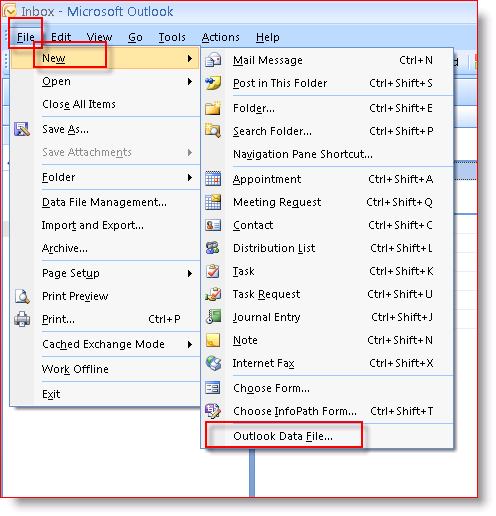
2: Keep Default Setting – Office Outlook Personal Folders File (.pst) and Click OK
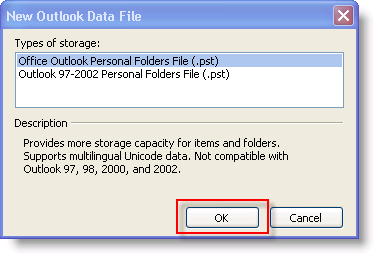
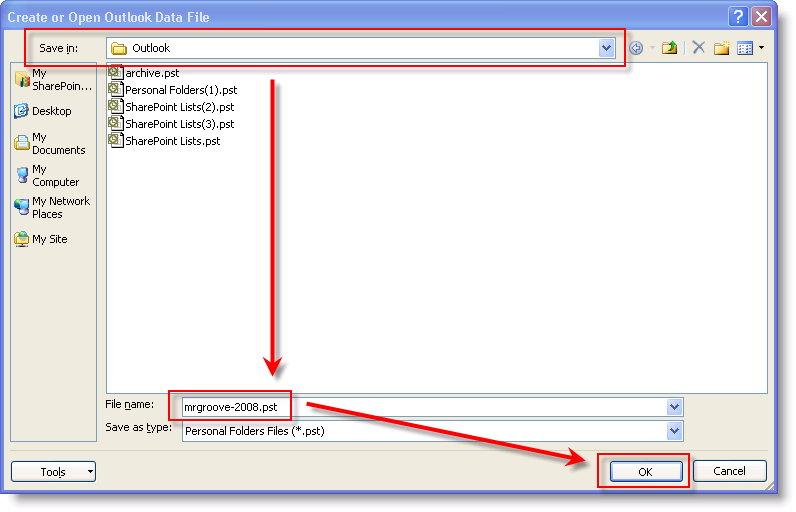
Note: In Step 3, you need to decide where to SAVE the new .PST file. By default, new PST files are saved:
Windows Vista & Windows Server 2008 : C:\Users\MrGroove\AppData\Local\Microsoft\Outlook\
Windows XP: C:\Documents and Settings\MrGroove\Application Data\Microsoft\Outlook\
3: Verify location to save PST file, Type File Name for PST file (I organize by Mailbox Name and Year), Click OK
4: In the Name Field, Type Display Name. This is the name which will be displayed in Outlook. Click OK

Note: Optionally, you can also enter a Password here to improve Security. Prior to Outlook 2007, adding a Password to a .PST file was worthless due to a flaw which allowed the Security to be defeated instantly using a number of Security Password Cracking Products no matter how long or complex the password was. I’ve not tested to see if Microsoft fixed this Issue in Outlook 2007 but once I do, I’ll update the article.
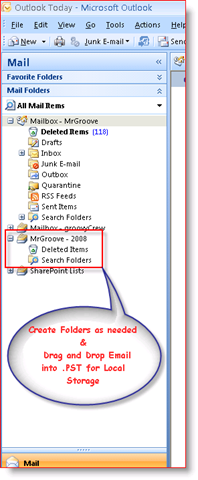
5: Once Step 4 is completed, new .PST or Local Personal Data Folder will display in your Navigation Pane as shown in the Screen Snip Below. Expand the Personal Data File you created and Right Click on Personal Data File (MrGroove – 2008 in my example) to begin Creating additional folders, Calendars etc… Drag and Drop also works OR, you can Cut and Paste Emails or Folders of Emails from your Server Mailbox to your new .PST Personal Data Folder. It’s pretty simple.
No comments:
Post a Comment